Media Library
Upload, manage, preview, and organize digital video and image creative assets.
The Media Library allows you to upload, organize, and inspect creative assets for your advertising campaigns.
Go to Platform
Access your Media Library directly on the app: app.fairads.in/media
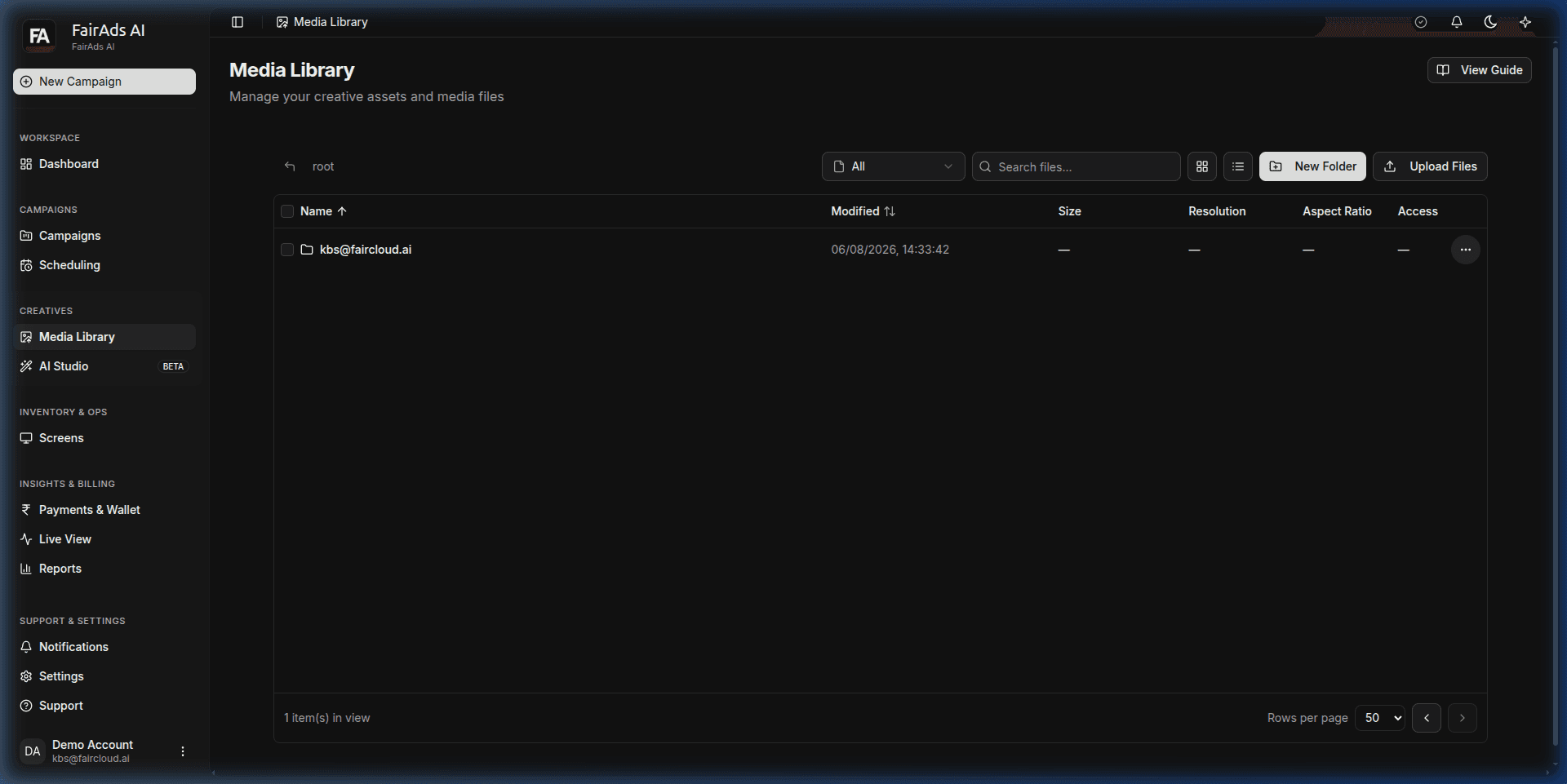 Figure 1: Media Library workspace displaying folder structure, file search, new folder creation, and direct media upload options.
Supported Formats & Specifications
To ensure seamless playback on outdoor digital displays, upload assets adhering to these specs:
| Asset Type | Supported Extensions | Recommended Specs | Max File Size |
|---|---|---|---|
| Video | .mp4, .mov, .webm | H.264 / H.265, 30/60 fps, No Audio or Balanced Audio | 500 MB |
| Image | .png, .jpg, .jpeg, .webp | High-res (min 1080p), sRGB color profile | 50 MB |
Aspect Ratio Management
Outdoor screens come in different orientations. The Media Library tags assets by aspect ratio:
16:9(Landscape): Standard horizontal screens (e.g., 1920 × 1080 px).9:16(Portrait): Vertical kiosk & elevator displays (e.g., 1080 × 1920 px).4:3(Square/Traditional): Legacy or square retail screens.
Folder & Asset Operations
In the Media Library interface:
- New Folder: Create organized folders by campaign, brand, or resolution specs.
- Upload Files: Drag-and-drop or select files from your desktop.
- Search & Filter: Filter by file type (
All,Videos,Images) or search by asset name. - View Guide: Click View Guide in the top action bar to inspect screen spec recommendations.
Tip
Organize your assets into dedicated folders before building campaigns to simplify screen assignment during checkout.
How is this guide?